Microsoft 365/Office365 Analytics

Microsoft 365/Office365 Dashboards

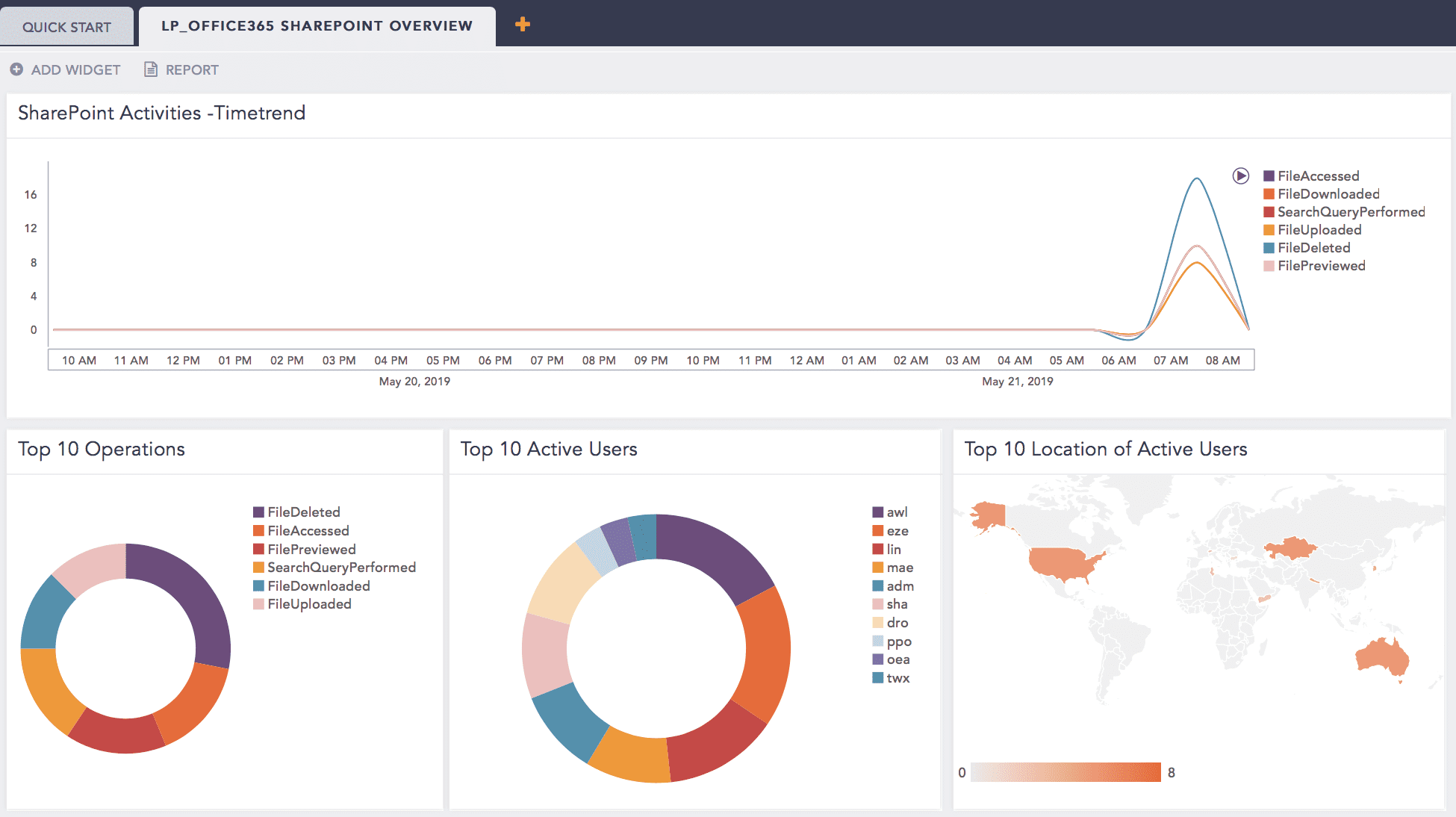
LP_Office365 SharePoint Overview

This dashboard displays view files, executables, and SharePoint operations, and also active SharePoint users. It consists of the following widgets:

Widget

Description

Top 10 Operations

The top 10 SharePoint operations, like files/folders/executables inserted, updated, listed, deleted, uploaded, or downloaded.

SharePoint Activities -Timetrend

A time trend of SharePoint activities from the last 24 hours.

Top 10 Active Users

The top 10 active users that successfully logged in SharePoint environment.

Top 10 Location of Active Users

The top 10 countries that successfully logged in from in your SharePoint environment.

Top 10 Users Involved in File Upload

The top 10 users who uploaded individual or multiple files to SharePoint.

Top 10 Users Involved in File Download

The top 10 users who downloaded individual or multiple files from SharePoint.

Top 10 Users Involved in File Delete

The top 10 users who deleted temporary, unused, junk, or unwanted files on SharePoint.

Top 10 Executables in Operation

The top 10 executable software files running in SharePoint.

Top 10 Users Sharing Executables

The top 10 users who share ready-to-run software on SharePoint with multiple users.

Top 10 Files in Operation

The top 10 file operations performed on SharePoint, such as file create, delete, copy, move or rename.

Top 10 File Uploaded

The top 10 individual or multiple files uploaded to SharePoint.

Top 10 File Download

The top 10 individual or multiple files downloaded by users from SharePoint.

Top 10 File Deleted

The top 10 temporary, unused, junk, or unwanted files deleted from SharePoint.

LP_Office365 SharePoint Folder Activities

This dashboard displays operations performed on folders in SharePoint, such as modification, renaming, moving, and deletion. It consists of the following widgets:

Widget

Description

Folder Modified - List

The modification operation performed by users in the folder directory in SharePoint. The list consists of:

  • The user who modified the folder.

  • Geo-location (country or source address) from where the folder is accessed and modified.

  • The list of files in the folder.

  • Timestamp (MM/DD/YYYY hh:mm:ss) of the activity when the folder is modified.

  • SharePoint URL.

  • SharePoint object identifier, also known as SharePoint Object ID.

Folder Renamed - List

The rename operation performed by users in the folder directory in SharePoint. The list consists of:

  • The user who renamed the folder.

  • Geo-location (country or source address) from where the folder is accessed and renamed.

  • The list of files in the folder.

  • Timestamp (MM/DD/YYYY hh:mm:ss) of the activity when the folder is renamed.

  • SharePoint URL.

  • SharePoint object identifier, also known as SharePoint Object ID.

Folder Moved - List

A list of sub-folder moved to new folder in SharePoint. The list consists of:

  • The user who modified the folder.

  • Geo-location (country or source address) from where the folder is accessed and moved.

  • The list of files in the folder.

  • Timestamp (MM/DD/YYYY hh:mm:ss) of the activity when the folder is moved.

  • SharePoint URL.

  • SharePoint object identifier, also known as SharePoint Object ID.

Folder Deleted - List

A list of deleted folders from SharePoint. The list consists of:

  • The user who deleted the folder.

  • Geo-location (country or source address) from where the folder is accessed and deleted.

  • The list of files in the folder.

  • Timestamp (MM/DD/YYYY hh:mm:ss) of the activity when the folder is deleted.

  • SharePoint URL.

  • SharePoint object identifier, also known as SharePoint Object ID.

LP_Office365 SharePoint File Activities

The dashboard displays operations performed on files in SharePoint, such as upload, download, delete, and rename.

Widget

Description

Top 10 File Uploaded

The top 10 files uploaded on SharePoint. The list consists of:

  • The timestamp when files were uploaded.

  • User who uploaded the files.

  • Geolocation where files were uploaded.

  • Uploaded file names.

  • SharePoint object identifier, also known as ObjectID.

Top 10 File Deleted

The top 10 files deleted on SharePoint. The list consists of:

  • The timestamp when files were deleted.

  • User who deleted the files.

  • Geolocation where files were deleted.

  • Deleted file names.

  • SharePoint object identifier, also known as ObjectID.

Top 10 File Rename Event

The top 10 files renamed on SharePoint. The list consists of:

  • The timestamp when files were renamed.

  • User who renamed the files.

  • Geolocation where files were renamed.

  • Uploaded file names.

  • SharePoint object identifier, also known as ObjectID.

Top 10 File Downloaded

The top 10 files downloaded on SharePoint. The list consists of:

  • The timestamp when files were downloaded.

  • User who downloaded the files.

  • Geolocation where files were downloaded.

  • Downloaded file names.

  • SharePoint object identifier, also known as ObjectID.

LP_Office365 Overview

This dashboard displays Office365 events. It consists of the following widgets:

Widget

Description

Top 10 Applications

The top 10 most commonly used applications in Office365, such as Excel, Microsoft Teams or Project.

Top 10 Operations

The top 10 Office365 operations related to administration, security, permissions management and content.

Failed Activity by Event Source

Failed activities of event sources. For instance, failed authentication or an error occurred while sending email is a failed activity whereas SharePoint or ObjectModel is the event source.

Failed Activity by Application

Failed Office365 activities based on applications. For instance, failed authentication is failed activity whereas Outlook is the application.

Successful Activity by Event Source

Successful Office365 activities based on applications. For instance, access invitation accepted is a successful activity performed by SharePoint.

Azure AD Operations

Operations related to Identity Access Management (IAM), Authentication Management and Governance in Azure Active Directory. IAM operations include activities or actions performed to secure or manage the identity lifecycle. Authentication Management operations include activities or actions performed to manage credentials, define authentication measures, delegate tasks and define access policies based on enterprise security posture. Governance operations include activities or actions to grant privilege and non-privilege access and control change to the environment.

Exchange Operations

Operations in Microsoft Exchange. For instance, Exchange mailbox data operations (CreateItem operation), eDiscovery operations (SearchMailboxes operation), Availability operations (GetRoomLists operation), Delegate management operations (AddDelegate operation) or Mail application management operations (DisableApp operation).

SharePoint Operations

Operations in SharePoint. For instance, SharePoint File Operations (SharePoint file-related events) or SharePoint List Operations (SharePoint lists and list item related events) or SharePoint Sharing schema (SharePoint file share-related events).

One Drive Operations

Operations in OneDrive. For instance, Audit operations including AccessInvitationCreated, AccessRequestApproved, FileAccessed, FileDeleted or FolderDeletedFirstStageRecycleBin.

Top 10 Users

The top 10 active users of Office365.

Top 10 AD Operations

The top 10 Azure Active Directory (AD) operations. AD operations related to Identity Access Management (IAM), Authentication Management and Governance in Azure Active Directory. IAM operations include activities or actions performed to secure or manage the identity lifecycle. Authentication Management operations include activities or actions performed to manage credentials, define authentication measures, delegate tasks and define access policies based on enterprise security posture. Governance operations include activities or actions to grant privilege and non-privilege access and control change to the environment.

Top 10 Exchange Operations

The top 10 Microsoft Exchange operations. For instance, Exchange mailbox data operations (CreateItem operation), eDiscovery operations (SearchMailboxes operation), Availability operations (GetRoomLists operation), Delegate management operations (AddDelegate operation) or Mail application management operations (DisableApp operation).

Top 10 SharePoint Operations

The top 10 SharePoint operations. For instance, SharePoint File Operations (SharePoint file-related events) or SharePoint List Operations (SharePoint lists and list item related events) or SharePoint Sharing schema (SharePoint file share-related events).

Top 10 OneDrive Operations

The top 10 OneDrive operations. For instance, Audit operations including AccessInvitationCreated, AccessRequestApproved, FileAccessed, FileDeleted or FolderDeletedFirstStageRecycleBin.

LP_Office365 Operations by File Category

This dashboard displays operations performed on different file categories, such as upload, download, delete and rename. The file categories include docx (Word), ppt (PowerPoint), csv or xsls (Excel), PDF, image file (jpg or png), music files, video files and zip files. It consists of the following widgets:

Widget

Description

Top 10 Docx Files

The top 10 docx files where file operations, such as upload, download, delete and rename were performed.

Top 10 PowerPoints Files

The top 10 PowerPoints files where file operations, such as upload, download, delete and rename were performed.

Top 10 Excel Files

The top 10 Excel files where file operations, such as upload, download, delete and rename were performed.

Top 10 Pdf Files

The top 10 PDF files where file operations, such as upload, download, delete and rename were performed.

Top 10 Images Files

The top 10 images files where file operations, such as upload, download, delete and rename were performed.

Top 10 Zips Files

The top 10 Zip files where file operations, such as upload, download, delete and rename were performed.

Top 10 Music Files

The top 10 music files where file operations, such as upload, download, delete and rename were performed.

Top 10 Video Files

The top 10 video files where file operations, such as upload, download, delete and rename were performed.

LP_Office365 OneDrive Overview

This dashboard displays OneDrive users, operations, and performed activities. It consists of the following widgets:

Widget

Description

OneDrive Operations - Time trends

A time trend displaying OneDrive operations from the last 24 hours.

Top 10 Executables Stored

The top 10 executable files, such as pdf, image, video, music or docx stored on OneDrive.

Top 10 OneDrive Users

The top 10 active OneDrive users.

Top 10 Locations of OneDrive Users

The top 10 geolocations from where OneDrive was accessed.

Top 10 File Accessed

The top 10 files accessed by users on OneDrive.

Top 10 File Uploaded

The top 10 files uploaded by users on OneDrive.

Top 10 File Moved

The top 10 files moved by users from their current location to OneDrive.

Top 10 UserAgent

The top 10 user agents. User agents provide information regarding clients’ applications.

LP_Office365 OneDrive Folder Activities

This dashboard displays operations performed on folders in OneDrive. It consists of the following widgets:

Widget

Description

Folder Modified - List

The modification operation performed by users in the folder directory in OneDrive. The list consists of:

  • The user who modified the folder.

  • Geo-location (country or source address) from where the folder is accessed and modified.

  • The list of files in the folder.

  • Timestamp (MM/DD/YYYY hh:mm:ss) of the activity when the folder is modified.

  • OneDrive URL.

  • OneDrive object identifier, also known as OneDrive Object ID.

Folder Renamed - List

The rename operation performed by users in folder directory in OneDrive. The list consists of:

  • The user who renamed the folder.

  • Geo-location (country or source address) from where the folder is accessed and renamed.

  • The list of files in the folder.

  • Timestamp (MM/DD/YYYY hh:mm:ss) of the activity when the folder is renamed.

  • OneDrive URL.

  • OneDrive object identifier, also known as OneDrive Object ID.

Folder Moved - List

A list of sub-folder moved to new folder in OneDrive. The list consists of:

  • The name of a user who modified the folder.

  • Geo-location (country or source address) from where the folder is accessed and moved.

  • The list of files in the folder.

  • Timestamp (MM/DD/YYYY hh:mm:ss) of the activity when the folder is moved.

  • OneDrive URL.

  • OneDrive object identifier, also known as OneDrive Object ID.

Folder Deleted - List

A list of deleted folders from OneDrive. The list consists of:

  • The name of a user who deleted the folder.

  • Geo-location (country or source address) from where the folder is accessed and deleted.

  • The list of files in the folder.

  • Timestamp (MM/DD/YYYY hh:mm:ss) of the activity when the folder is deleted.

  • OneDrive URL.

  • OneDrive object identifier, also known as OneDrive Object ID.

LP_Office365 OneDrive File Activities

This dashboard displays operations performed on files in OneDrive. It consists of the following widgets:

Widget

Description

Files Upload - List

Files uploaded on OneDrive. It lists:

  • The timestamp when the file is uploaded.

  • User who uploaded a file.

  • Geolocation of where a file was uploaded.

  • Uploaded file name.

  • OneDrive object identifier, also known as ObjectID.

Files Deleted - List

Files deleted on OneDrive. It lists:

  • The timestamp when a file is deleted.

  • User who deleted a file.

  • Geolocation of where a file was deleted.

  • Deleted file name.

  • OneDrive object identifier, also known as ObjectID.

Files Renamed - List

Files renamed on OneDrive. It lists:

  • The timestamp when a file is renamed.

  • User who renamed a file.

  • Geolocation of where a file was renamed.

  • Uploaded file name.

  • OneDrive object identifier, also known as ObjectID.

File Downloaded - List

Files downloaded on OneDrive. It lists:

  • The timestamp when a file is downloaded.

  • User who downloaded a file.

  • Geolocation of where a file was downloaded.

  • Downloaded file name.

  • OneDrive object identifier, also known as ObjectID.

Files Shared Event - List

A detailed list of files shared events in OneDrive. It lists:

  • The timestamp when a file is shared.

  • User who shared a file.

  • Geolocation of where a file was shared.

  • Shared file name.

  • OneDrive object identifier, also known as ObjectID.

Top 10 Items Shared with External Users

The top 10 items shared with external users. It list:

  • Actions, such as SharingInvitationCreated, SharingInvitationAccepted or SharingSet.

  • Source users.

  • Target users from limited acccess group.

  • Object Type.

  • OneDrive URL.

LP_Office365 Exchange Overview

This dashboard displays Exchange operations. It consists of the following widgets:

Widget

Description

Top 10 Operations

The top 10 Microsoft Exchange operations. For instance, Exchange mailbox data operations (CreateItem operation), eDiscovery operations (SearchMailboxes operation), Availability operations (GetRoomLists operation), Delegate management operations (AddDelegate operation) or Mail application management operations (DisableApp operation).

Exchange Activities - Timetrend

A time trend of Microsoft Exchange activities from the last 24 hours.

Top 10 Configuration Changes by External Access

The top 10 configuration changes on client access and mail flow made on Exchange servers by an external source.

Exchange Activities - Timetrend

A time trend that displays Microsoft Exchange activities from the last 24 hours.

Top 10 Configuration Changes by External Access

The top 10 configuration changes made by an external source.

Top 10 Users

The top 10 active users of Microsoft Exchange.

Top 10 Locations

The top 10 geolocations of Microsoft Exchange tenant.

LP_Office365 Azure AD User Account Management

This dashboard displays a detailed Azure AD User Account Management activities. It consists of the following widgets:

Widget

Description

Created Accounts

Local accounts created that are connected to a Microsoft account.

Top 10 Users in Account Creation

The top 10 users who are actively creating their accounts.

Deleted Accounts

The top 10 deleted user accounts because of inactivity or the account was kept idle for more than 93 days.

Top 10 Users in Account Deletion

The top 10 users whose accounts were deleted as the user was inactive or the account was kept idle for more than 93 days.

Accounts Deleted by Specific Users

User accounts deleted by specific users who may be admin or users with privilege access.

Top 10 Accounts Created

The top 10 user accounts created.

Activities in User Account Management by action

A detailed list of user account management by actions to investigate activities performed on a user account. User account management activities include creating users, changing user pictures, managing user access to applications, blocking and unblocking users, or getting user information on an unbounce landing page.

Activities in User Account Management

Activities performed in user accounts. User account management activities include creating users, changing user pictures, managing user access to applications, blocking and unblocking users, or getting user information on an unbounce landing page.

Success vs Failure Password Change Attempts

Details of failed or successful password change attempts by users.

Password Change Attempts

Number of password change attempts for a user account and status whether the password was changed successfully or not.

Success vs Failure Password Set or Reset Attempts

The status of the password set or reset attempts.

Password Set or Reset Attempts

An overview of the password set or reset attempts based on user, account name, action (password set or reset), status (success or failure).

More than 3 Failed Password Change Attempts

Details of password change attempts that failed more than three times based on username and account ID.

Top 10 Owners Added to Group

The top 10 owners or admins added after creating a group in Azure Active Directory.

Owners Added to Group

Details of owners added after creating a group in Azure Active Directory based on timestamp and username.

Top 10 Members Added to Group

The top 10 members added after creating a group in Azure Active Directory.

Members Added to Group

Members added after creating a group in Azure Active Directory.

LP_Office365 Azure AD Login Activities

This dashboard displays a detailed Azure AD login activities, including successful/failed login details based on country, username and IP address. It consists of the following widgets:

Widget

Description

Login Activity Timetrend

A time-trend of Azure Active Directory login activities from the last 24 hours.

Failed Logins

Failed login attempts of a user due to invalid credentials, password expiration or enabling the wrong authentication mode.

Top 10 Users in Failed Login

The top 10 users who failed to log in to their account.

Top 10 Failure Reasons

The top 10 reasons why a user could not log in to their account. Some common login failures are invalid credentials, bad password, password expiration or enabling the wrong authentication mode.

Failed Login Details

Details of failed login attempts based on username, country, and reason for failure.

Successful Logins

Successful login details when a user has successfully authenticated to their Azure AD.

Top 10 Users in Successful Login

The top 10 users who successfully authenticated their Azure AD.

Top 10 Countries in Successful Login

The top 10 countries from where login to Azure AD was successful.

Successful Login Details

The count of successful logins to Azure AD.

Unique Clients

The source address of the unique client. The unique application (client) ID is assigned to your application by Azure AD on registration.

Top 10 Countries in Failed Logins

The top 10 countries from where users were not able to successfully log in to Azure AD.

LP_Office365 Security and Compliance Alerts

This dashboard displays a detailed overview of managing and monitoring data, protecting information, minimizing compliance risks, and meeting regulatory requirements. It consists of the following widgets:

Widget

Description

Top 10 Alerts Triggered

The top 10 security and compliance-related alerts that Logpoint triggered.

Security and Compliance Alert - Time Trend

A time trend of security and compliance-related alerts triggered in the last 24 hours.

Top 10 Users in Action

The top 10 users involved in actions indicated by the security and compliance-related alerts.

Categories of Alert triggered - Time Trend

A time trend of alerts based on their categories, such as data governance, threat management, data loss prevention, mail flow and other categories.

Top 10 Actions

The top 10 actions performed by users.

Data Governance - List

A detailed list of alerts related to data governance based on alert timestamp, alert name, action, and result. The data governance alerts provide insights on how to govern Office365 data for compliance or regulatory requirement.

Threat Management - List

A detailed list of alerts related to threat management based on alert timestamp, alert name, action, and result. Threat Management alerts help you track and respond to emerging threats by supplying required information related to threat actions and results.

Data Loss Prevention - List

A detailed list of alerts related to data loss prevention based on alert timestamp, alert name, action, and result. Data Loss Prevention alerts provide insights on actions to prevent unintentional sharing of sensitive items.

Mail Flow - List

A detailed list of mail flow-related alerts based on alert timestamp, alert name, action, and result. Mail flow alerts provide insights into how mail flows through your organization. You can use this information to identify irregular patterns, anomalies and fix issues as they occur.

Access Governance - List

A detailed list of alerts related to access government based on alert timestamp, alert name, action, and result. Access governance alerts enable you to govern how people can access resources in groups or teams.

Other category - List

A detailed list of alerts related to other categories except for data governance, access governance, threat management, data loss prevention and mail flow. The chart displays alert timestamp, alert name, action and a result that differs with alerts.

Adding Microsoft 365/Office365 Dashboards

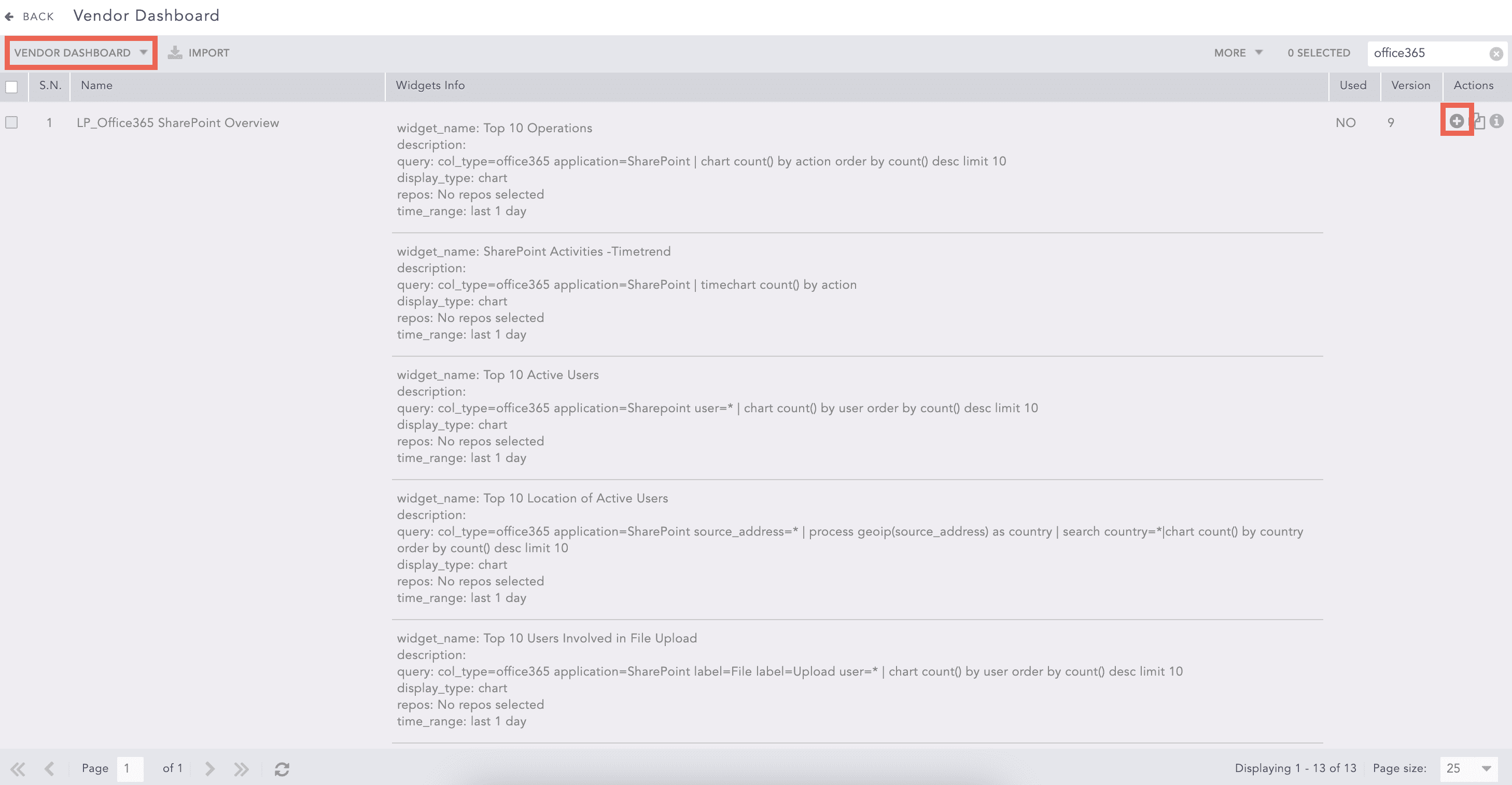
  1. Go to Settings >> Knowledge Base from the navigation bar and click Dashboard.

  2. Select VENDOR DASHBOARD from the drop-down.

  3. Click Add (add) icon from Actions.

Dashboard

Adding the Office365 Dashboard

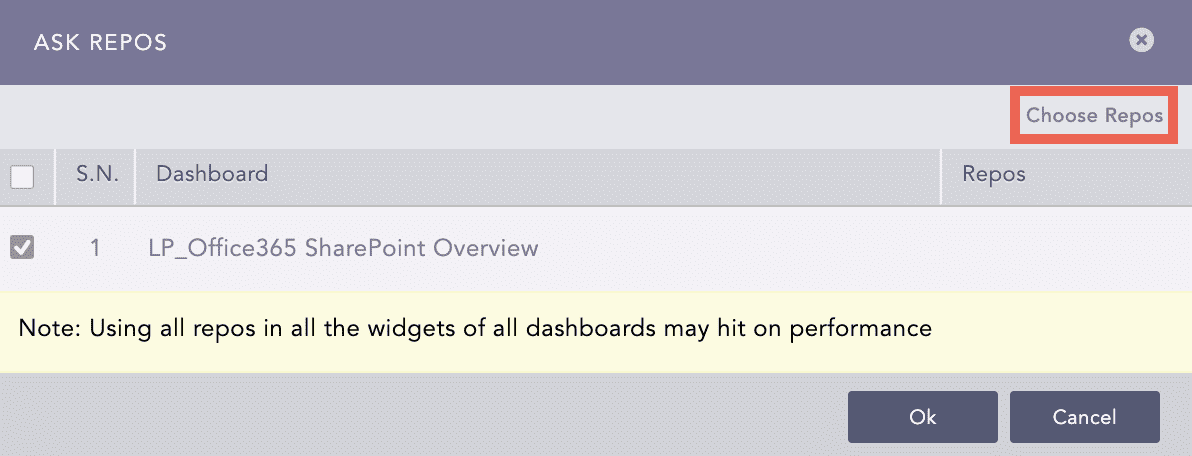
  1. Click Choose Repos.

Office365 Ask Repos

Ask Repos

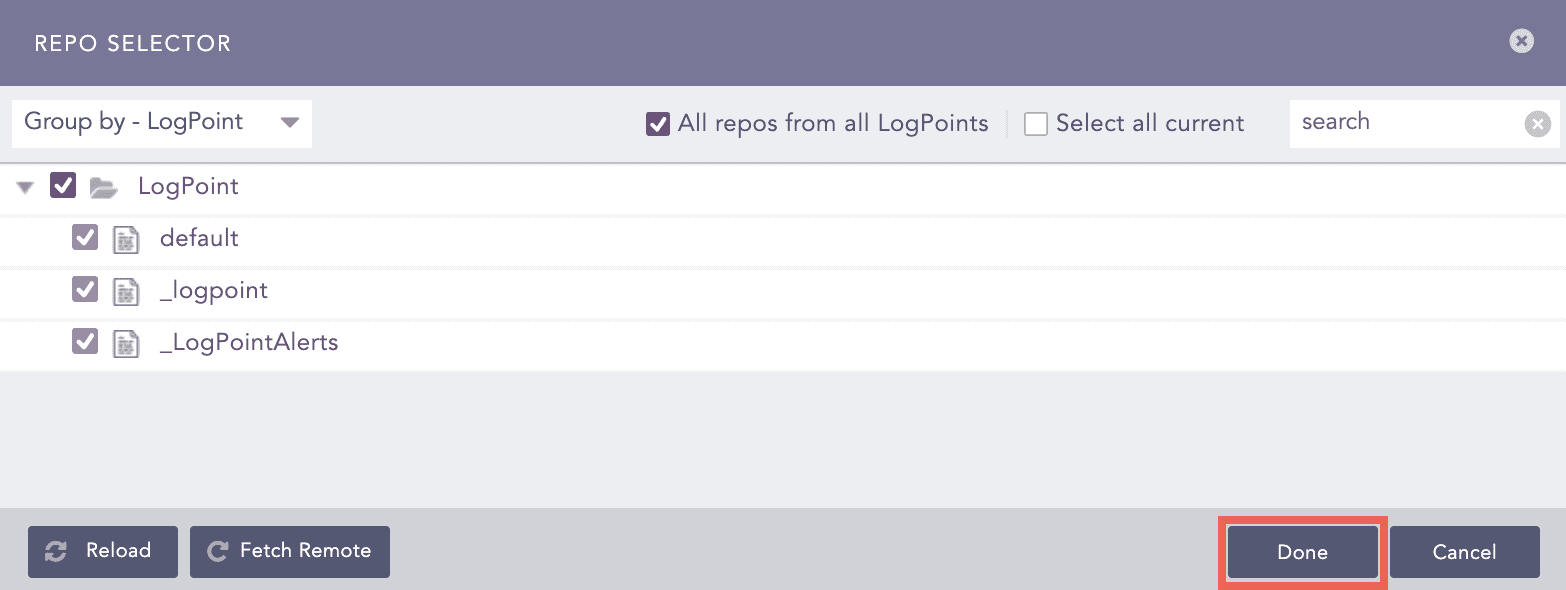
  1. Select the repo and click Done.

Repo Selector

Repo Selector

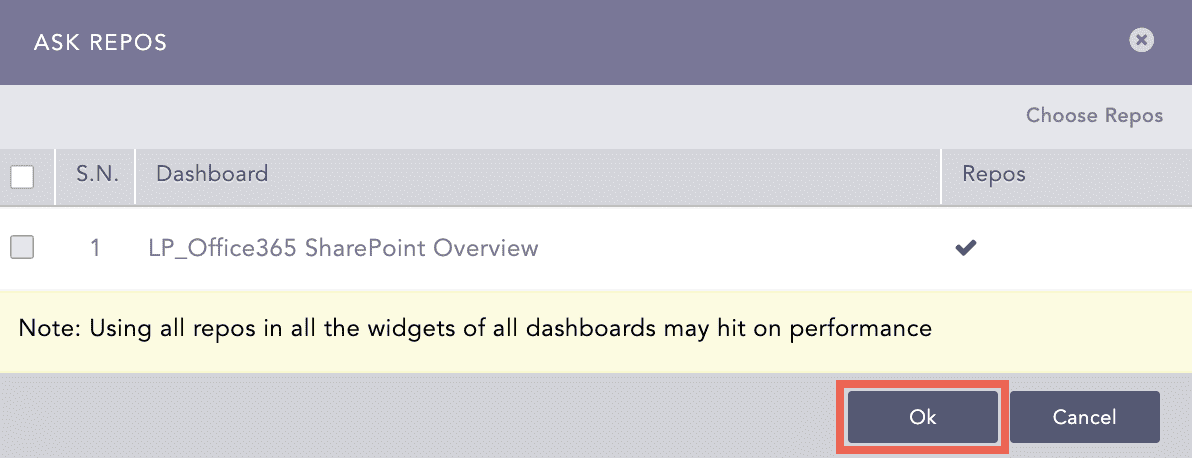
  1. Select the dashboard in ASK REPOS and click Ok.

Confirmation for Repo

Confirmation for Repo

You can find Office365 dashboards under DASHBOARDS.

Office365 Dashboard

Office365 Dashboard

Microsoft 365/Office365 Alerts

Adding Microsoft 365/Office365 Alerts

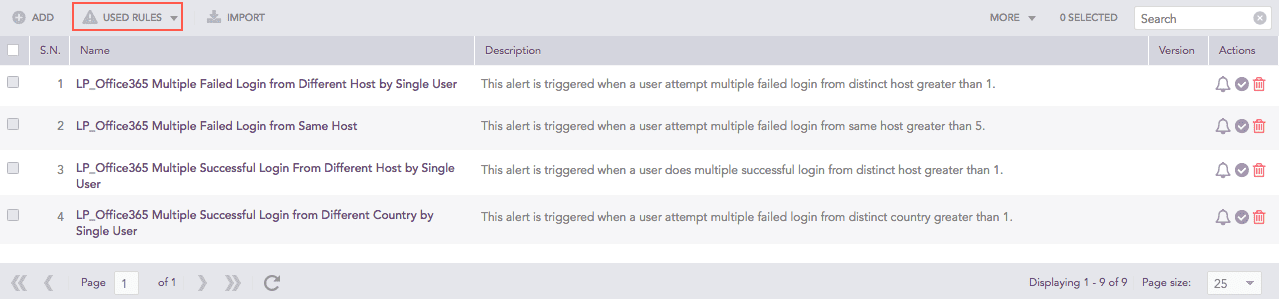
  1. Go to Settings >> Knowledge Base from the navigation bar and click Alert Rules.

  2. Select VENDOR DASHBOARD from the drop-down.

  3. Click the Add (add) icon from Actions.

Using Office365 Alert Rules

Using Office365 Alert Rules

After adding alerts, Office365 redirects you to the Used Alert Rules page.

Used Alert Rules Page

Used Alert Rules Page

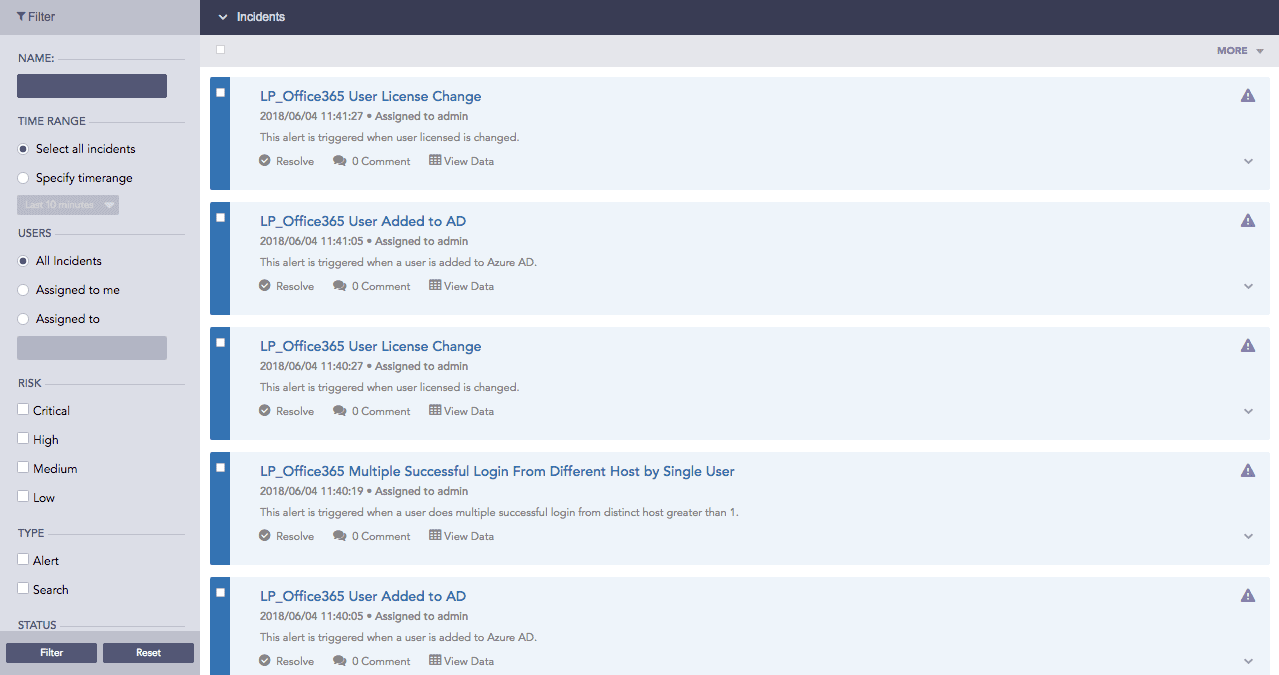
Once the used alert rules are triggered, it generates the corresponding incidents in the Incidents page.

Office365 Incidents

Office365 Incidents

Microsoft 365/Office365 Reports

The available report templates are:

  • LP_Office365 SharePoint Overview: It is the incident summary report that provides statistical information on the SharePoint activities/operations and files upload/downloaded/deleted, in different formats, such as graphs and lists.

  • LP_Office365 SharePoint Folder Activities: It is the incident summary report that provides statistical information on the folders modified, renamed, moved, or deleted in different formats, such as graphs and lists.

  • LP_Office365 SharePoint File Activities: It is the incident summary report that provides statistical information on the files uploaded, deleted, renamed, and downloaded in different formats, such as graphs and lists.

  • LP_Office365 OneDrive Overview: It is the incident summary report that provides statistical information on OneDrive operations and users in different formats, such as graphs and lists.

  • LP_Office365 OneDrive Folder Activities: It is the incident summary report that provides statistical information on OneDrive folder activities in different formats, such as graphs and lists.

  • LP_Office365 OneDrive File Activities: It is the incident summary report that provides statistical information on OneDrive file activities in different formats, such as graphs and lists.

  • LP_Office365 Azure AD User Account Management: It is the incident summary report that provides statistical information on Office365 Azure Active Directory User Account Management in different formats, such as graphs and lists.

  • LP_Office365 Azure AD Login Activities: It is the incident summary report that provides statistical information on login activities, successful/failed login details, in different formats, such as graphs and lists.

  • LP_Office365 Operations by File Category: It is the incident summary report that provides statistical information on files types (for example, docx, powerpoint, excel, and pdf), in different formats, such as graphs and lists.

  • LP_Office365 OneDrive Anonymous Link Activities: It is the incident summary report that provides statistical information on anonymous links created/removed/updated/accessed in different formats, such as graphs and lists.

  • LP_Office365 Overview: It is the incident summary report that provides statistical information on Office365 activities in different formats, such as graphs and lists.

  • LP_Office365 Exchange Overview: It is the incident summary report that provides statistical information on Office365 activites.

Using Microsoft 365/Office365 Report Templates

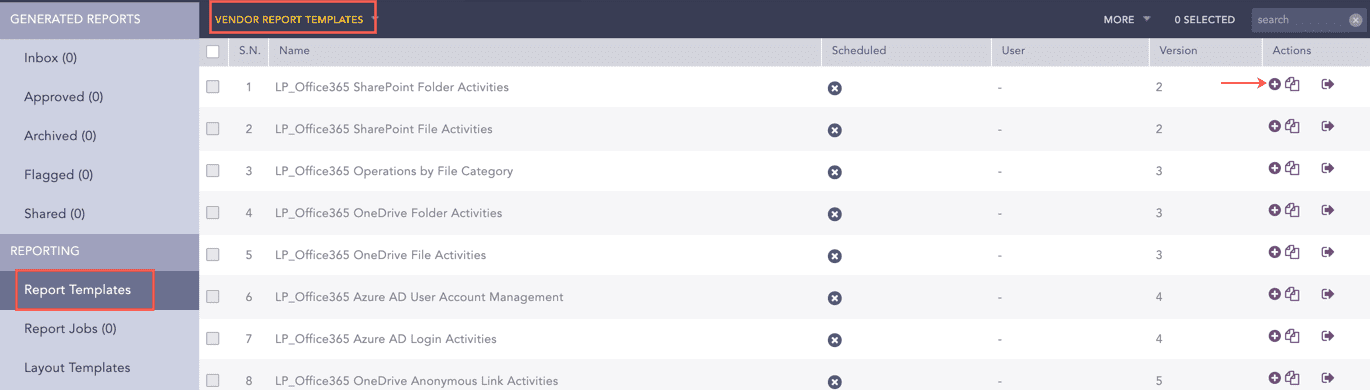
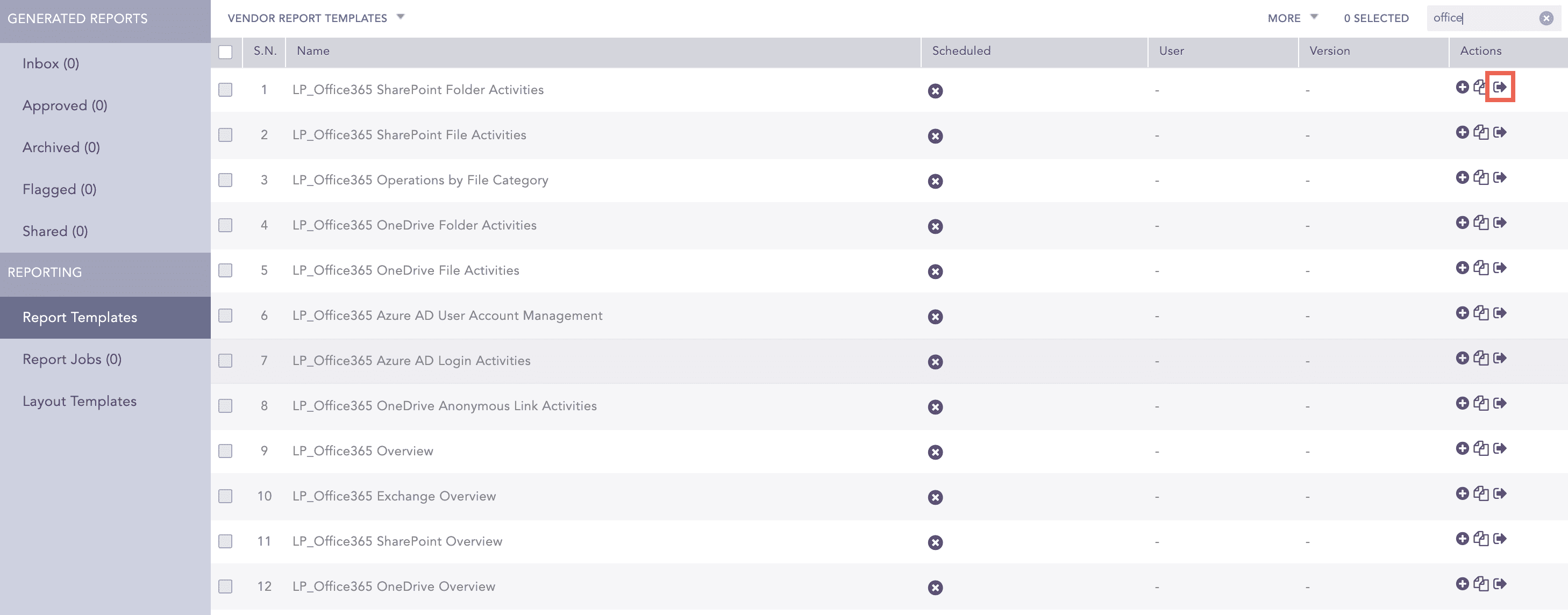
  1. Go to Report >> Reports Template.

  2. Select VENDOR REPORT TEMPLATES from the drop-down.

  3. Click the Use Vendor Report (add) icon from Actions.

Using Office365 Report Template

Using Office365 Report Template

  1. Click Run this Report from Actions.

Run the Office365 Report Template

Running the Office365 Report Template

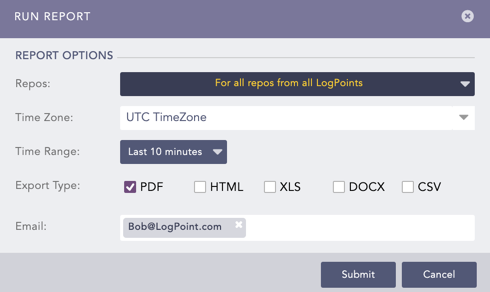
  1. Select Repos, Time Zone, Time Range, Export Type and enter the Email address.

  2. Click Submit.

Run Report

Running the Office365 Report Template

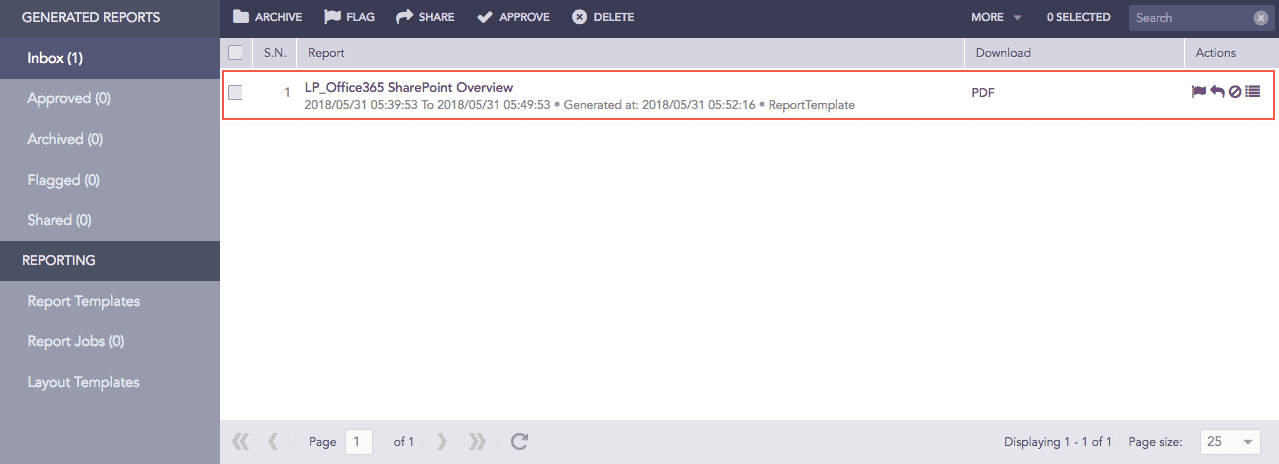
Office365 Generated Report for *LP_Office365 Sharepoint Overview*

Generated Report

You can view the reports being generated under Report Jobs and download them. Click PDF under Download to get .pdf formatted reports.

You can analyze the data using a report’s graphs, time trends, lists, and text. Report data summarizes incidents during a specific period, such as the past 24 hours or the past five minutes. While generating a report, you can also customize the calendar period. For more information, go to Scheduling.

Microsoft 365/Office365 Search Templates

Using the Microsoft 365/Office365 Search Templates

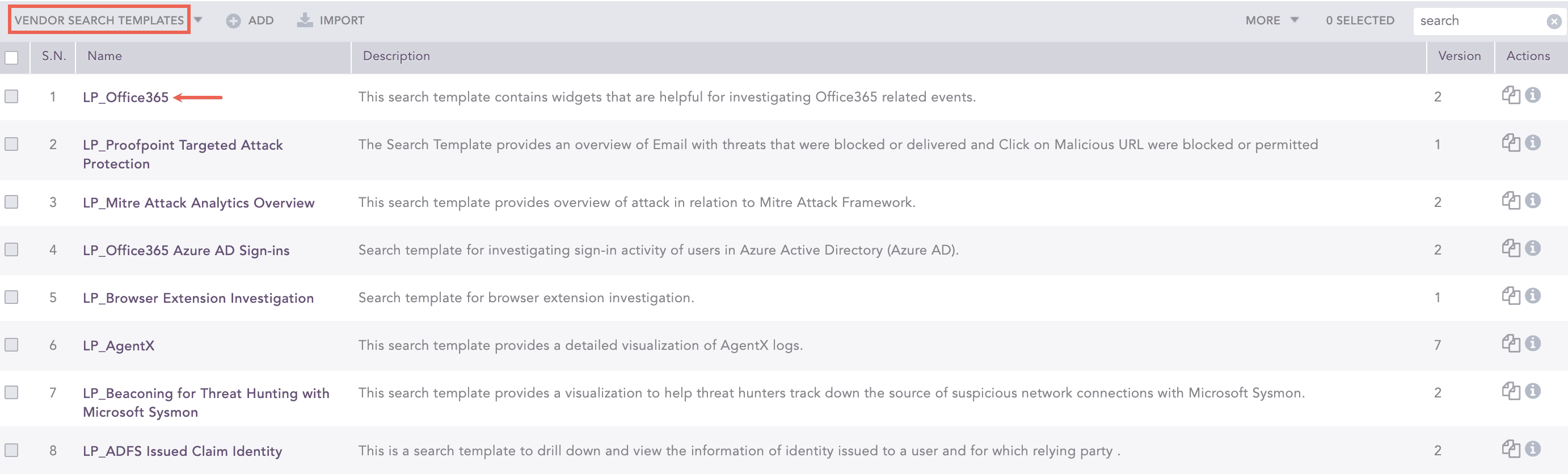
  1. Go to Settings >> Knowledge Base from the navigation bar and click Search Templates.

  2. Select VENDOR SEARCH TEMPLATES from the drop-down and click LP_Office365.

Viewing Office365 Search Template

Selecting Office365 Search Template

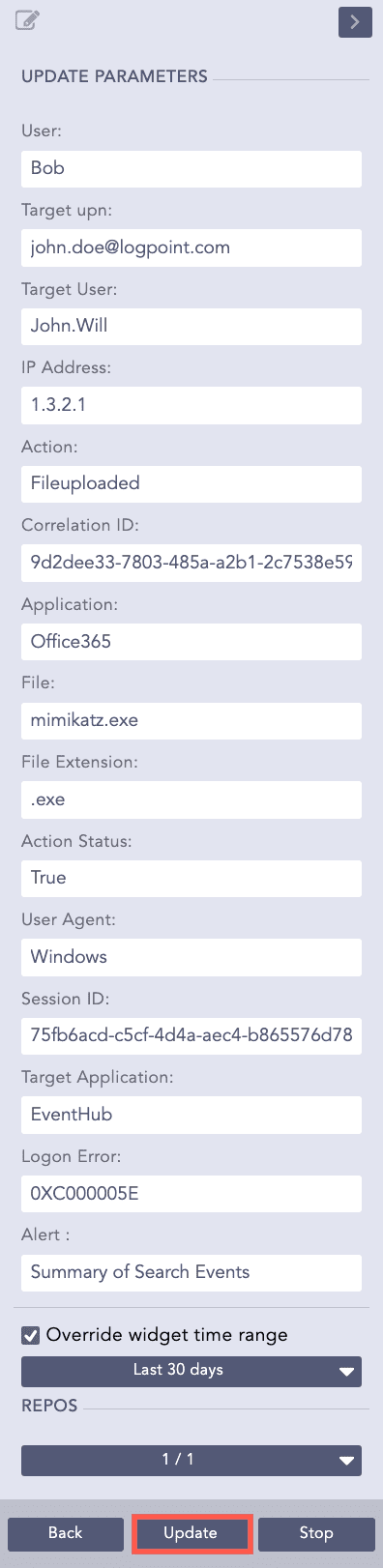
  1. In Update Parameters, enter the required parameter(s).

    3.1 Select Override widget time range to set a time range.

    3.2 Select REPOS.

    3.3 Click Update.

Updating Office365 Search Template

Updating Office365 Search Template

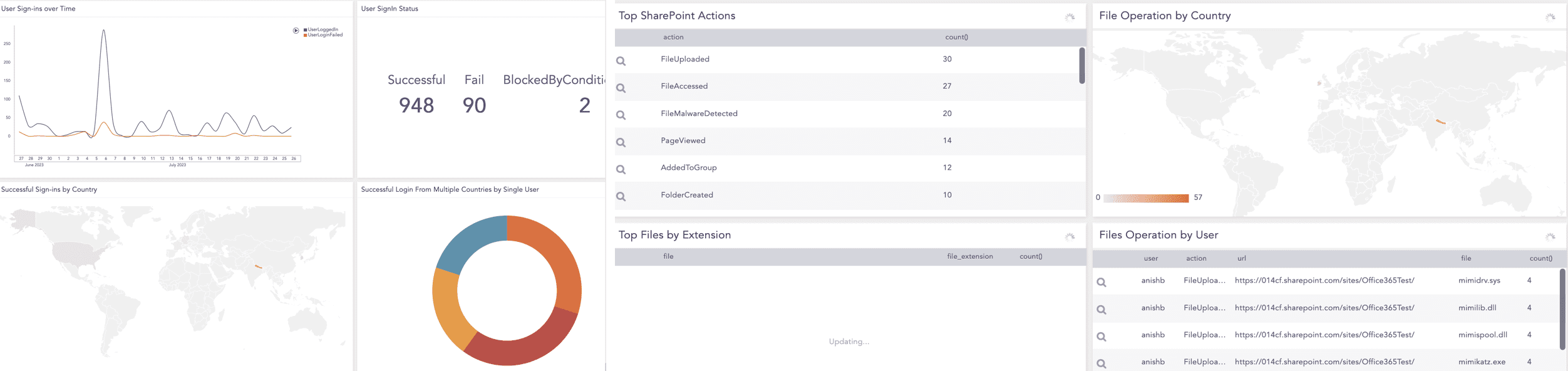
After updating, the widgets start populating the results. Logpoint forwards you to Search Template View to access the dashboards of the search template.

Viewing Office365 Search Template

Office365 Search Template

Viewing Office365 Search Template

Office365 Search Template

Microsoft 365/Office365 Labels

Application: Azure Active Directory

ACTION

LABELS

Update group

Update, Group, Account, Management

Change user license

User, License, Change, Account, Management

Change user Password

Change, User, Password, Account, Management

Reset user password

User, Password, Reset, Account, Management

UserLoggedIn

User, Login, Successful

Add user

Add, User, Account, Management

Add group

Add, Group, Account, Management

UserLoginFailed

User, Login, Fail

Hard Delete application

Delete, Application

Delete group

Delete, Group, Account, Management

Add owner to group

Add, Owner, Group, Account, Management

Update user

Update, User, Account, Management

Delete user

Delete, User, Account, Management

Add member to group

Add, Member, Group, Account, Management, User

Add service principal

Account, Management, Add, Principal, Service

Update service principal

Update, Service, Principal, Application, Management

Set Company Information

Set, Company, Information, Directory, Management

Update device

Update, Device

Add app role assignment grant to user

Add, Application, Role, User

Consent to application

Application, Consent

Update StsRefreshTokenValidFrom Timestamp

Update, Time

Remove OAuth2PermissionGrant

Remove, Permission

Add OAuth2PermissionGrant

Add, Permission

Update application

Update, Application

Add registered owner to device

Add, User, Device, Account, Management

Add app role assignment to service principal

Add, Application, Role, Service, Principal

Add device

Add, Device

Add registered users to device

Add, User, Device, Account, Management

Remove member from group

Remove, Member, Group, Account, Management, User

Add owner to application

Add,User,Application,Management

Add application

Add, Application, Management

Update company

Update, Company

Add member to a role

Add, Member, Role, Account, Management, User

Application: SharePoint

ACTION

LABELS

Added To Group

Group, Management

Site Collection Created

Site, Collection, Create

File Previewed

File, View

File CheckedIn

File, Check

Folder Created

Folder, Create

File Modified Extended

File, Modify

Site Collection Admin Removed

Admin, Remove

File Sync Downloaded Full

File, Download

Folder Deleted

Folder, Delete

File Accessed

File, Access

File Deleted

File, Delete

Group Updated

Group, Update

File Checked Out

File, Check

Page Viewed

Page, View

File Sync Uploaded Full

File, Sync, Upload, Full

File Accessed Extended

File, Access, Extend

File Downloaded

File, Download

Site Collection Admin Added

Admin, Add

File Uploaded

File, Upload

File Modified

File, Modify

File Moved

File, Move

Folder Modified

Folder, Modify

Folder Renamed

Folder, Rename

File Renamed

File, Rename

Secure Link Used

Secure, Link, Use

List Column Created

List, Column, Create

List Item Created

List, Create, Item

List Created

List, Create

Company Link Created

Company, Link, Create

List Column Updated

List, Column, Update

WAC Token Shared

Token, Share

Secure Link Created

Secure, Link, Create

Added To Secure Link

Add, Secure, Link

Folder Moved

Folder, Move

List Item Updated

List, Item, Update

List Updated

List, Update

Search Query Performed

Search, Query, Perform

Application: OneDrive

ACTION

LABELS

Sharing Inheritance Broken

Share, Inheritance, Broken

Folder Created

Folder, Create

File Modified Extended

File, Extend, Modify

File Uploaded

File, Upload

File Accessed

File, Access

Site Collection Admin Added

Admin, Add

Folder Modified

Folder, Modify

Site Collection Admin Removed

Admin, Remove

Anonymous Link Created

Anonymous, Link, Create

File Sync Downloaded Full

File, Download

Folder Deleted

Folder, Delete

Sharing Set

Share, Set

File Renamed

File, Rename

File Deleted

File, Delete

Page Viewed

Page, View

Group Added

Add, Group

File SyncUp loaded Full

File, Sync, Upload, Full

Added To Group

Add, Group

File Accessed Extended

File, Access, Extend

File Modified

File, Modify

File Moved

File, Move

File Downloaded

File, Download

Page Viewed Extended

Page, View, Extend

Anonymous Link Used

Anonymous, Link, Use

Company Link Created

Company, Link, Create

Permission Level Added

Permission, Level, Add

Company Link Used

Company, Link, Use

List Column Created

List, Column, Create

WAC Token Shared

Token, Share

List Created

List, Create

Anonymous Link Updated

Anonymous, Link, Update

File Copied

File, Copy

Folder Moved

Folder, Move

Site Deleted

Site, Delete

List Updated

List, Update

Site Column Created

Site, Column, Create

List Column Updated

List, Column, Update

DLPRuleMatch

Data, Loss, Prevention, Rule, Match

Application: Exchange

ACTION

LABELS

Install-Data Classification Config

Install, Data, Classification, Configuration

Set-User

Set, User

Set-Mailbox

Set, Mailbox

Install-Resource Config

Install, Resource, Configuration

Remove-Mailbox Location

Remove, Mailbox, Location

Set-Unified Group

Set, Unify, Group

Create

Create

New-Mailbox Relocation Request

New, Mail, Relocation, Request

Install-AdminAuditLogConfig

Install, Admin, Auditlog, Configuration

Set-AdminAuditLogConfig

Set, Admin, Auditlog, Configuration

Add-MailboxPermission

Add, Mailbox, Permission

Set-ExchangeAssistanceConfig

Set, Assistance, Configuration

Remove-UnifiedGroup

Remove, Group

Install-DefaultSharingPolicy

Install, Default, Share, Policy

Set-OwaMailboxPolicy

Set, Mailbox, Policy

SoftDelete

Soft, Delete

Set-MailUser

Set, Mail, User

ModifyFolderPermissions

Modify, Folder, Permission

SendAs

Send

HardDelete

Hard, Delete

FolderBind

Folder, Bind

New-Mailbox

New, Mailbox

Add-Recipient Permission

Add, Receiver, Permission

Set-Recipient Enforcement ProvisioningP olicy

Set, Recipient, Enforcement, Provision, Policy

Set-Tenant Object Version

Set, Tenant, Object, Version

Set-Organization Config

Set, Organization, Configuration

Remove Folder Permissions

Remove, Folder, Permission

New-AntiPhish Policy

New, Policy

New-Exchange Assistance Config

New, Assistance, Configuration

New-App

New, Application

Enable-AddressListPaging

Enable, Paging

Set-AntiPhish Policy

Set, Add, Policy

Set-AntiPhish Rule

Set, Add, Rule

Set-Transport Config

Set, Add, Transport, Configuration

Application: Microsoft Teams

ACTION

LABELS

Tab Added

Tab, Add

Channel Deleted

Channel, Delete

Channel Added

Channel, Add

Member Removed

Member, Remove, User, Account, Management

Teams Session Started

Team, Session, Start

Team Created

Team, Create

Tab Updated

Tab, Update

Tab Removed

Tab, Remove

Member Added

Member, Add, User, Account, Management

Connector Added

Connector, Add

Application: Skype For Business

ACTION

LABELS

Get-CsTeams Client Configuration

Get, Client, Configuration

Set-CsTenant Federation Configuration

Set, Federation, Configuration

Get-CsTenant Licensing Configuration

Get, License, Configuration

Get-CsTeams UpgradePolicy

Policy, Change, Update

Get-CsOnline User

Get, Online, User

Set-CsOnline DirectoryTenant

Set, Online, Directory, Tenant

Get-CsTeams Messaging Policy

Get, Message, Policy

Get-CsTenant

Get, Tenant

Get-CsTeams Upgrade Configuration

Get, Update, Configuration

Application: Security Compliance Center

Office365 labels the logs of Security Compliance Center either by its action or its category. The following table displays the labels for Security Compliance Center by its action:

ACTION

LABELS

File Downloaded

File, Download

Alert Triggered

Alert, Trigger

File Deleted

File, Delete

File Uploaded

File, Upload

File Copied

File, Copy

File Accessed

File, Access

The following table displays the labels for Security Compliance Center by its category:

CATEGORY

LABELS

DataGovernance

Security, Compliance, Alert,Data, Governance

ThreatManagement

Security, Compliance, Alert, Threat, Management

MailFlow

Security, Compliance, Alert, Mail, Flow

Permissions

Security, Compliance, Alert, Permission

DataLossPrevention

Security, Compliance, Alert, Data, Loss, Prevention

AccessGovernance

Security, Compliance, Alert, Access, Governance

Others

Security, Compliance, Alert, Other


Helpful?

We are glad this guide helped.


Please don't include any personal information in your comment

Contact Support